Kariel

The things you save deserve better than a Downloads folder.

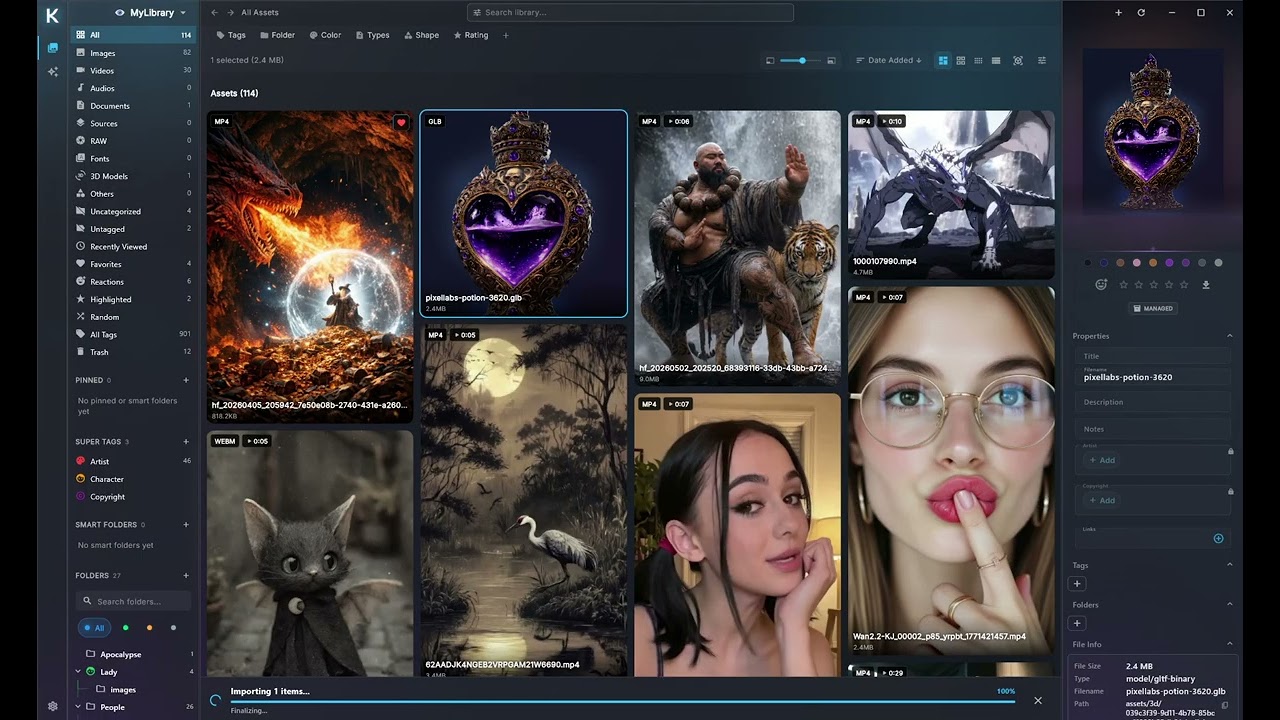
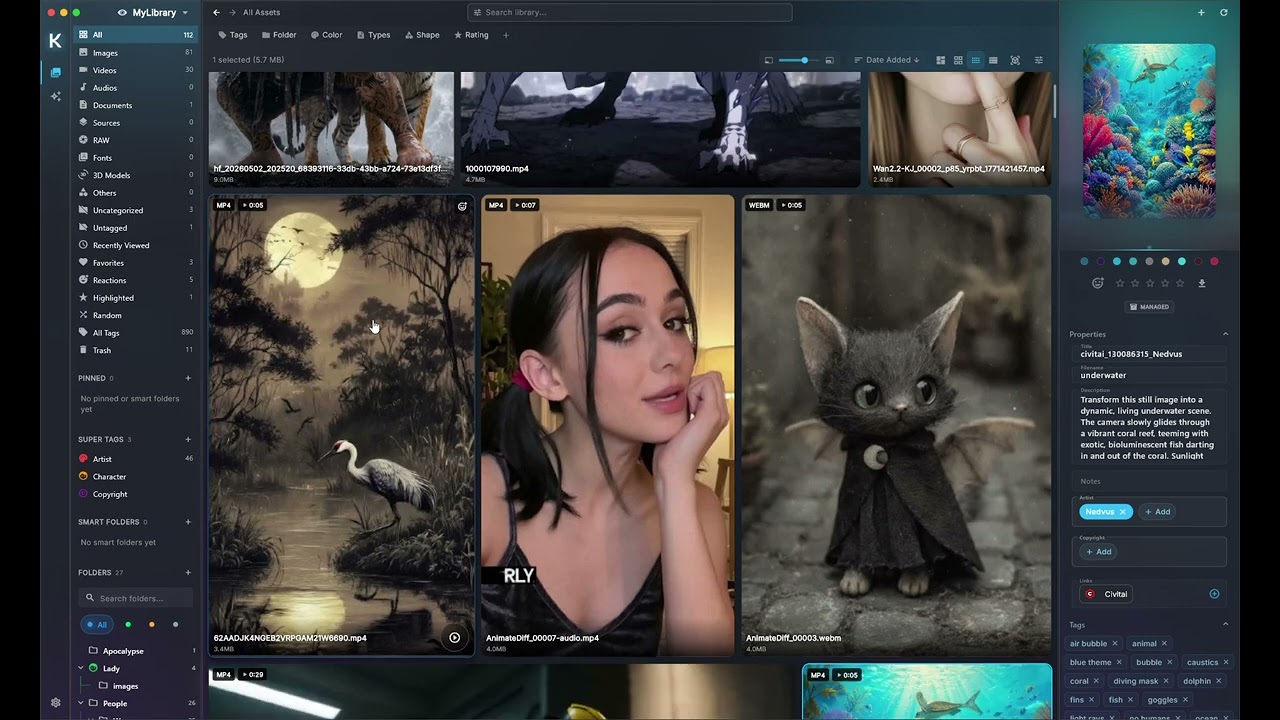
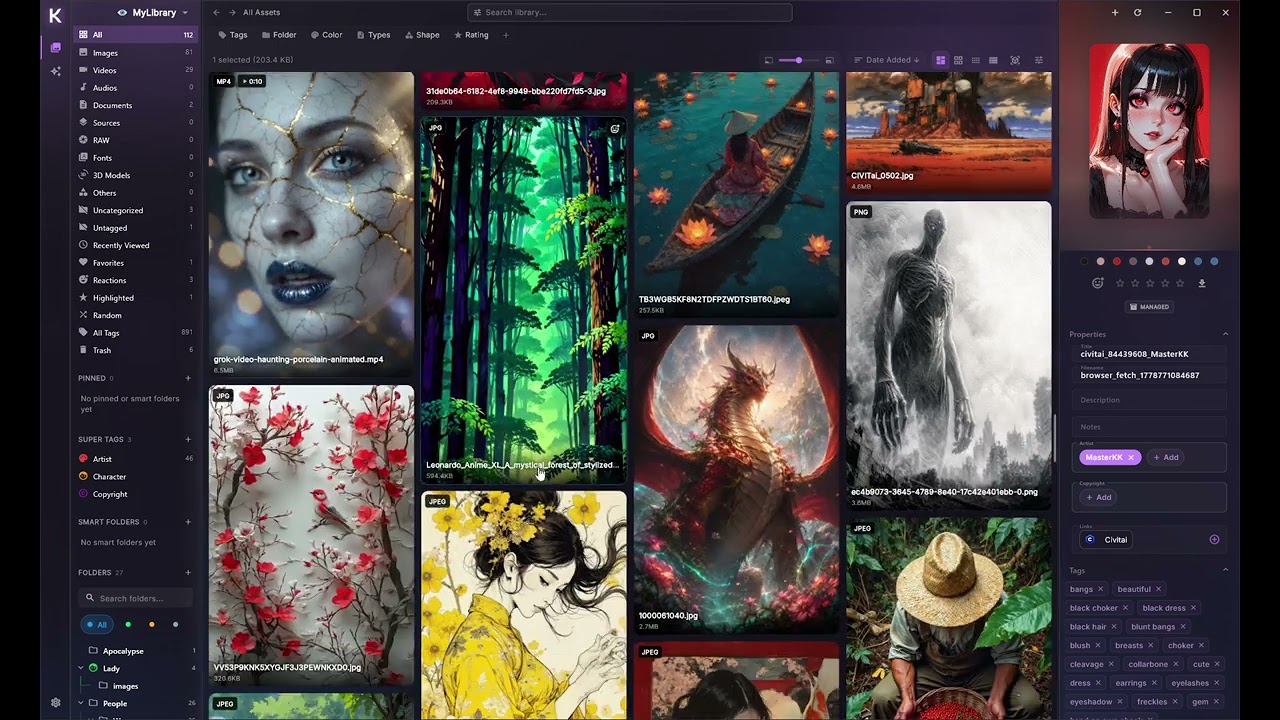
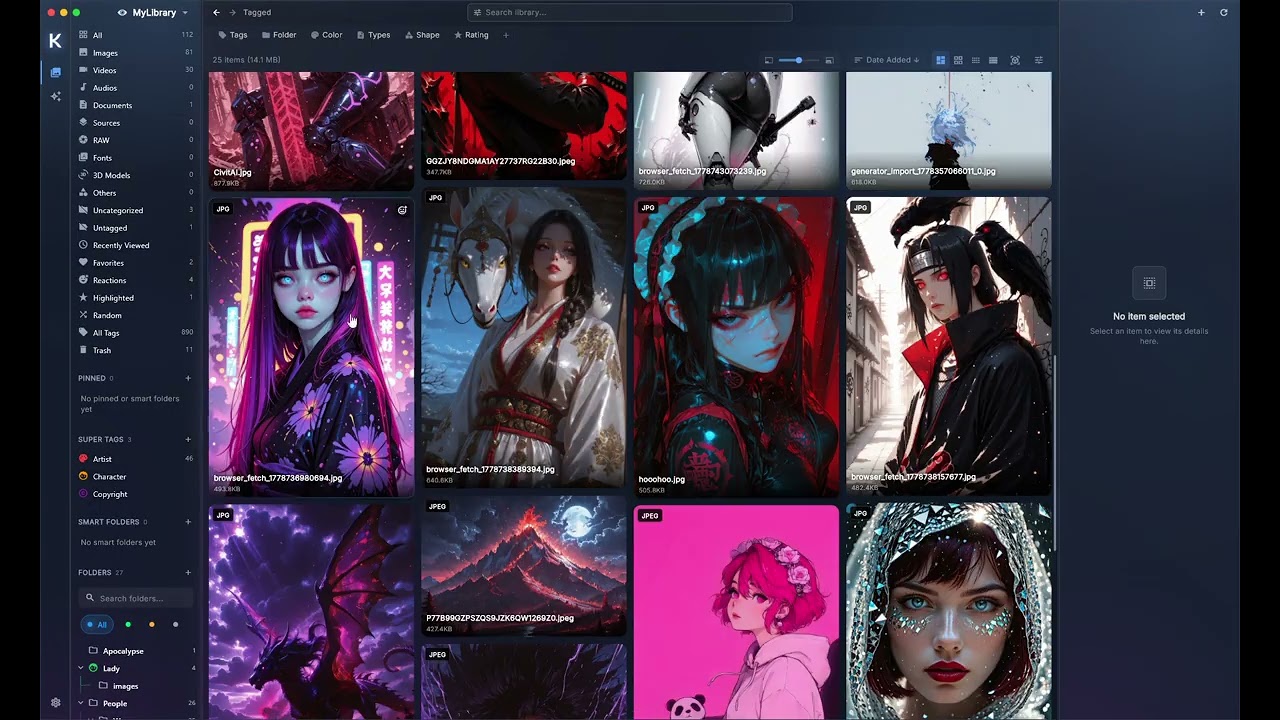
Kariel is a library for the images, videos and references you collect. Save from your browser, add from your phone, sort it your way, and find it again in seconds. All of it stays on your own computer.

For Mac, Windows and Android, with a Web Clipper for Chrome, Edge and Firefox. iPhone and iPad are in review with Apple.

Somewhere there’s a reference you saved last spring. It’s in a folder called “New folder (3)”, or a screenshot named “Image 2214”, or a tab you closed a little too fast.

Saving was never the hard part. Finding it again is.

See it, save it, and stay on the page.

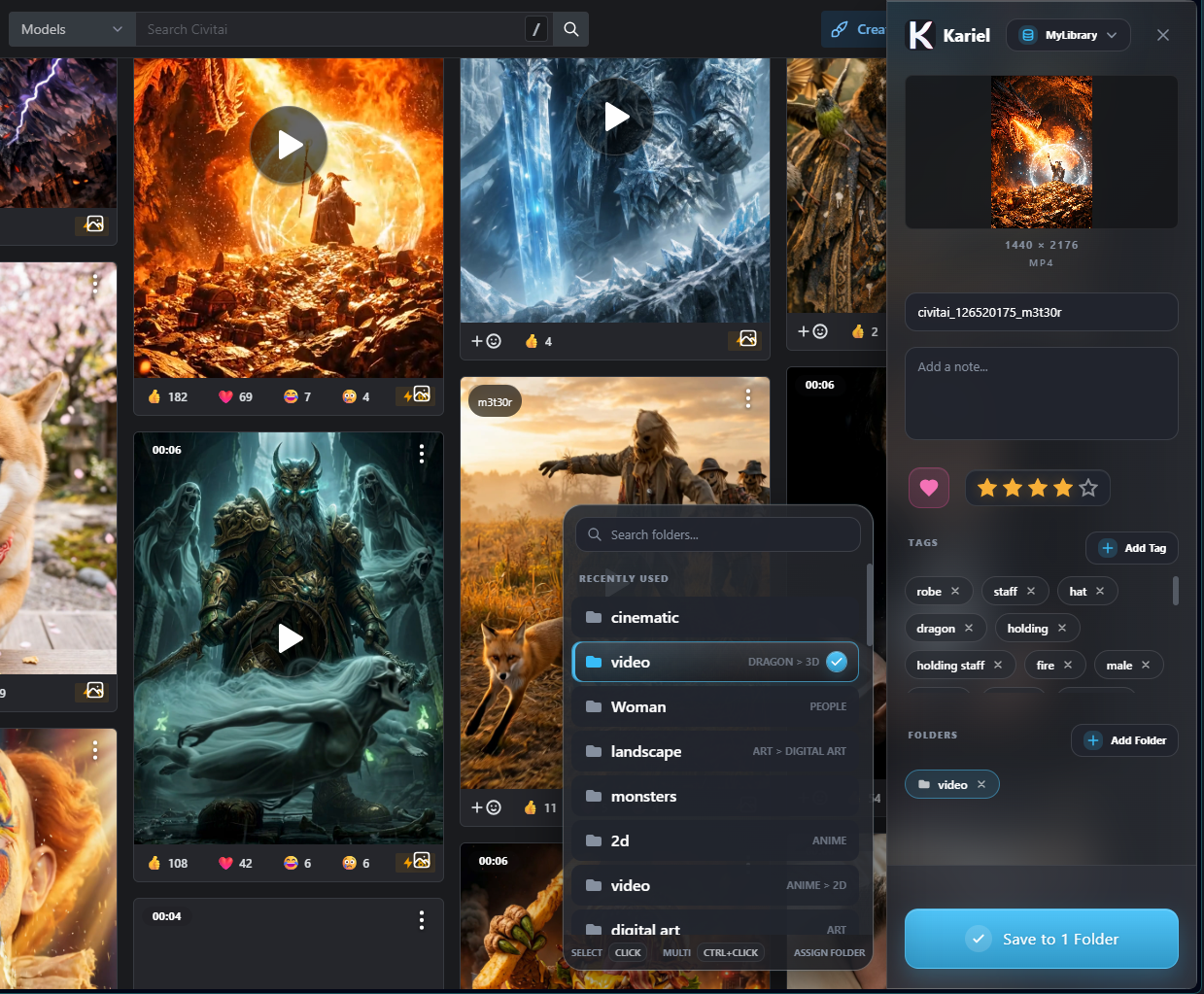
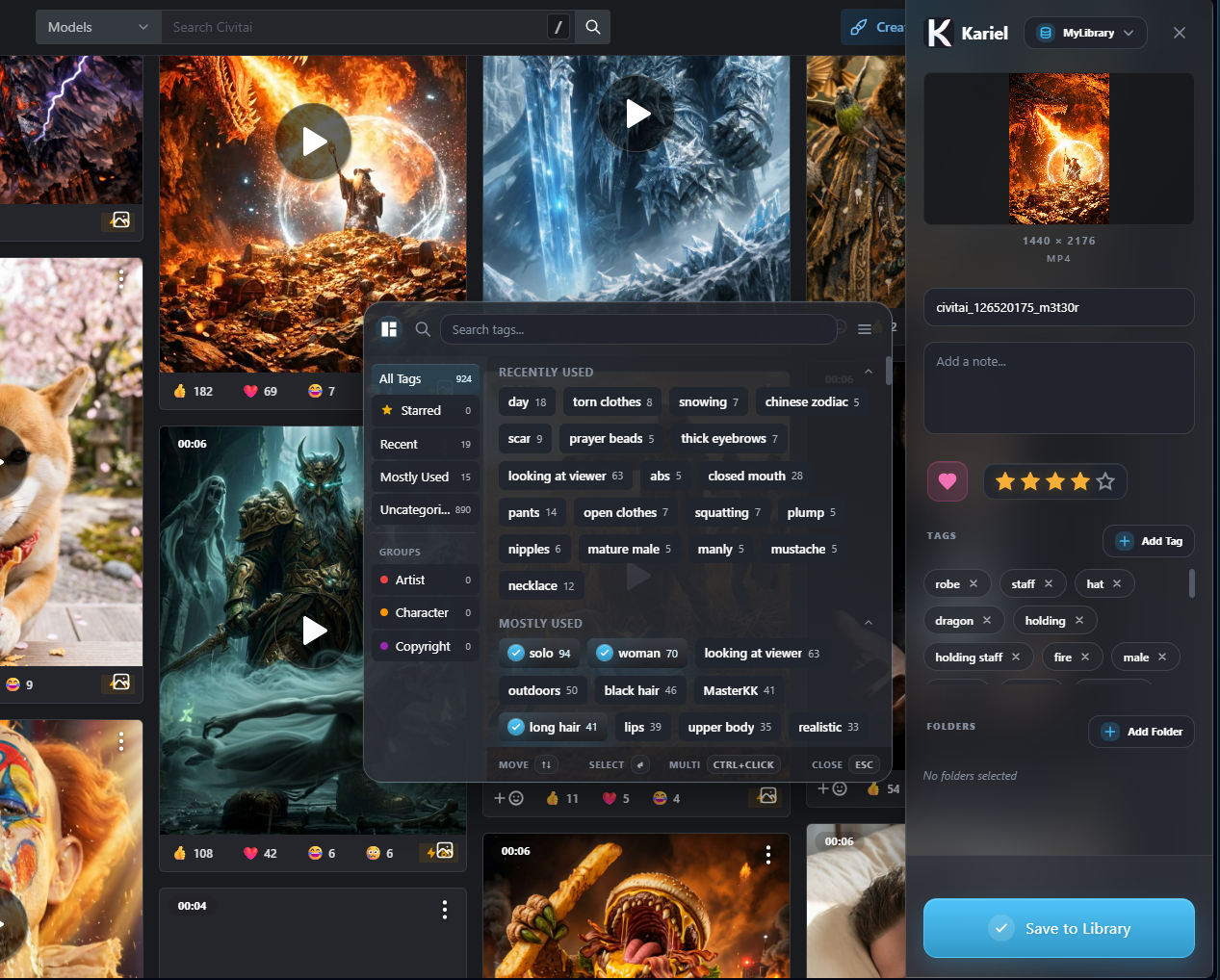
The Web Clipper lives in your browser. Pick a folder, add a few tags, and whatever caught your eye is in your library before you’ve finished scrolling.

Meet the Web Clipper

Anything on the page

Images, video, the page itself, a screenshot of part of it, or a recording.

Sorted on the way in

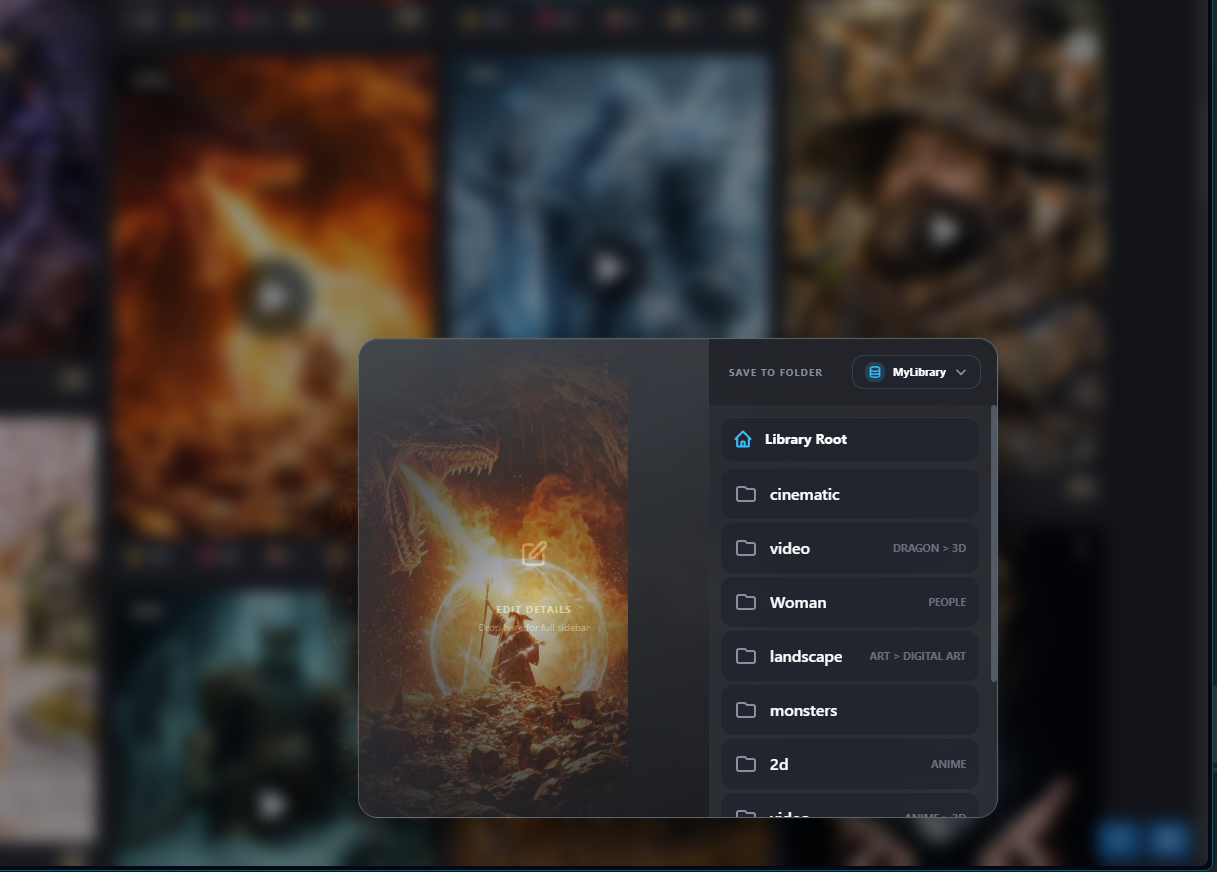
Choose the folder, tags and properties before you save, not after.

The source comes too

Every save keeps its link and the page’s own description.

More than a save button.

A few things the clipper does that a right-click never will.

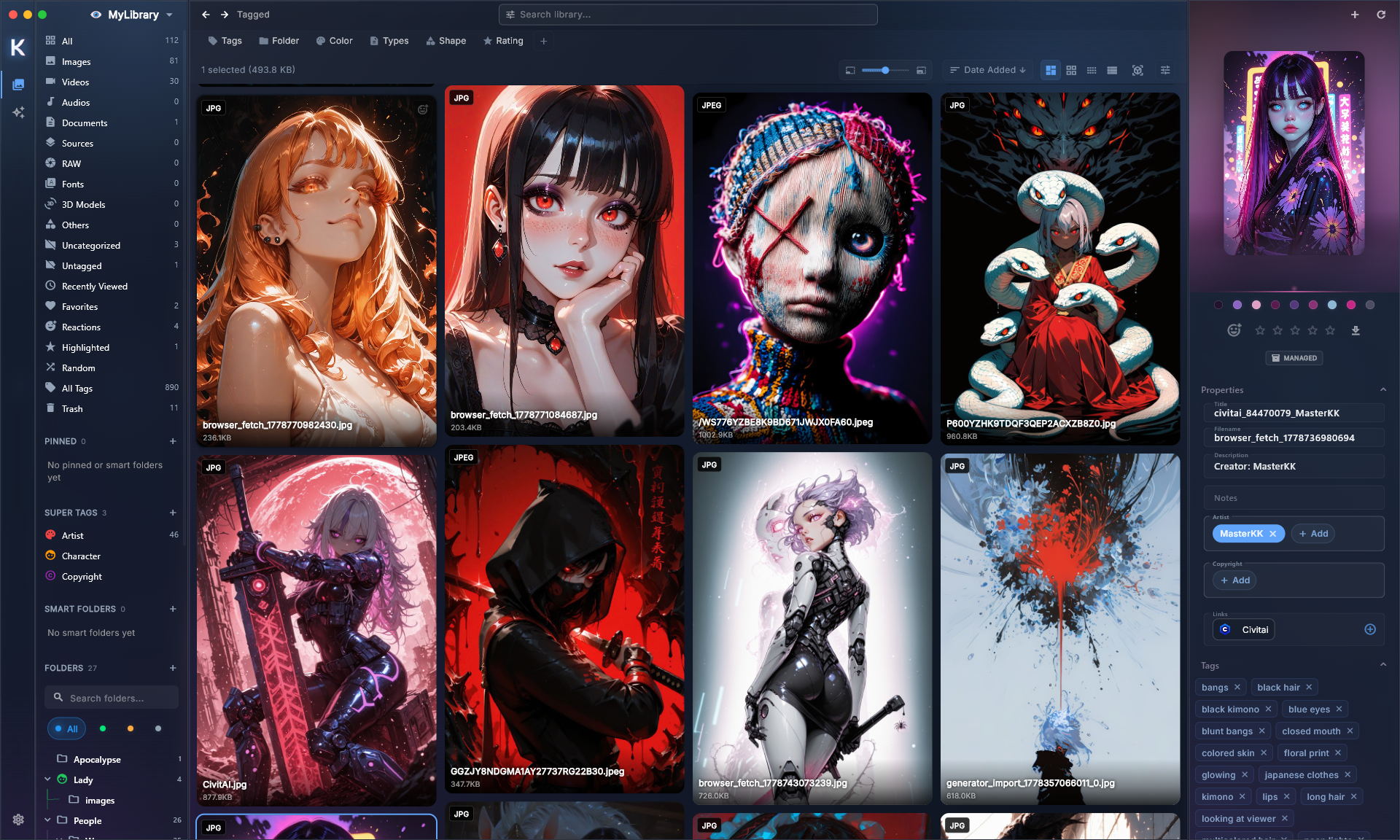
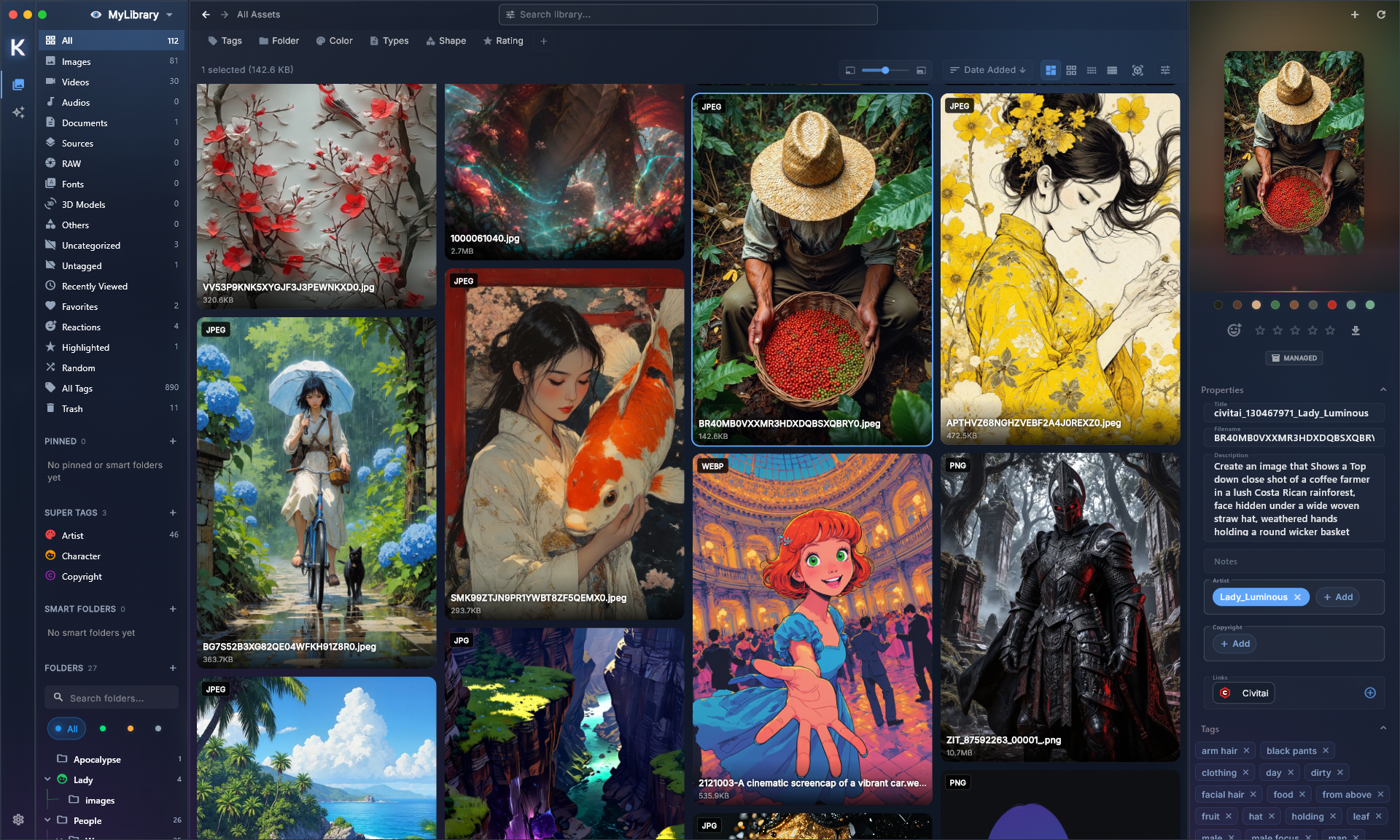
An asset with its source link, description and tags

Where it came from, a year later

Open any clip and the source link, description, colors and your own notes are right beside it.

A save button added to each image on a gallery site

Buttons that fit the site

On sites you use a lot, Kariel adds a quick-save to every image, and brings the site’s tags along.

A whole page at once
Pick the images worth keeping from a page and save them together.
Screenshots of any size
The visible page, the full page, or just the part you drag around.
Pages worth keeping
Save the page itself and read it later inside Kariel, with a local copy kept alongside.

Good ideas don’t wait until you’re at your desk.

A mural on your walk. A shopfront. A color you can’t stop looking at. Share it to Kariel from any app, or add it straight from your camera roll.

Your phone keeps its own library, and you can pair it with your desktop to browse everything you’ve saved there.

  • Android today
  • iPhone and iPad in review with Apple
Kariel on mobile
The Kariel mobile library
Tagging an asset on mobile

A pile becomes a library the day you can shape it.

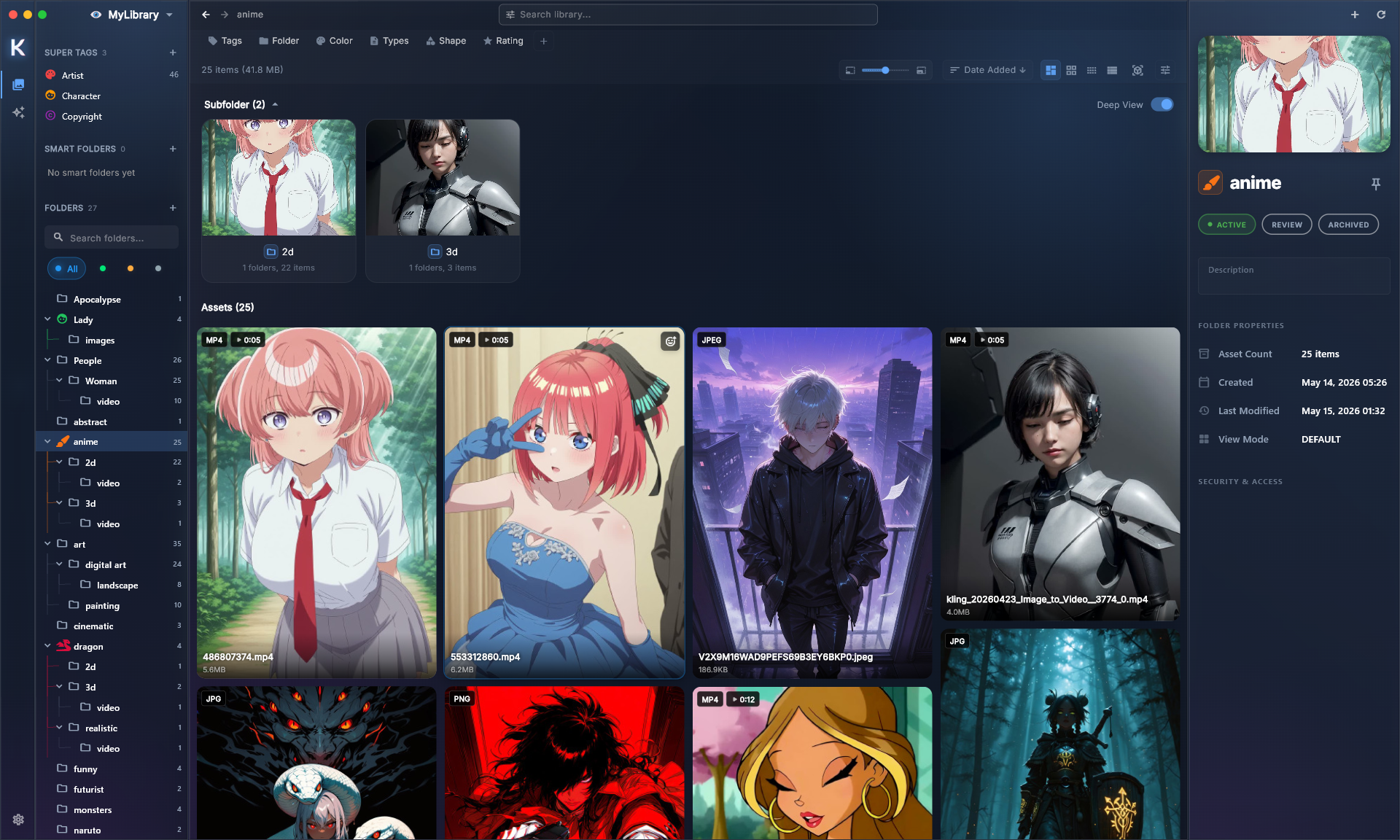
Use as much structure as you like, or hardly any. Kariel doesn’t mind either way.

  1. Folders and tags

    Nest folders as deep as you want. Give tags parents, so tagging “oak” also files it under “trees”, and aliases for the names you type all day.

    Adding tags to a photo
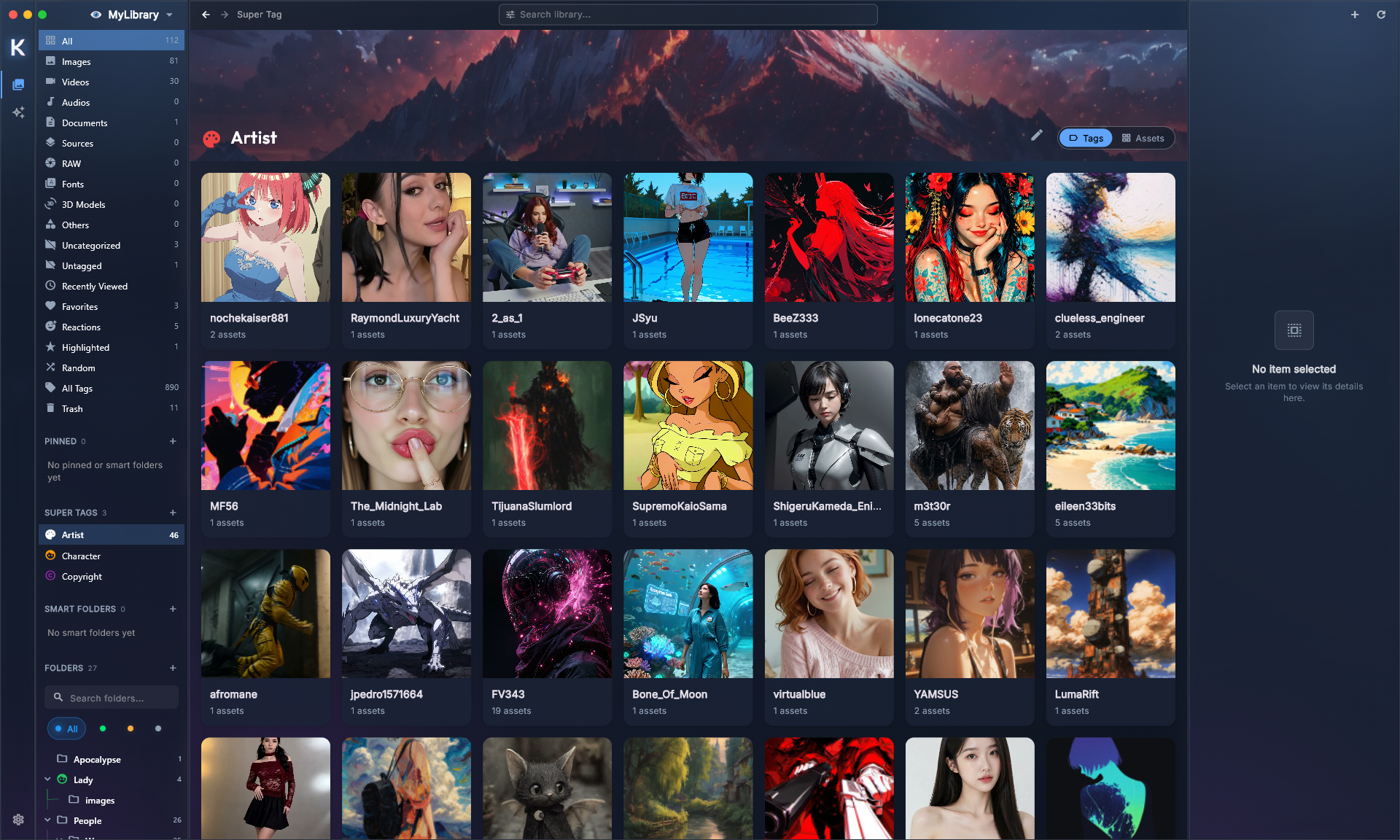
  2. Super tags and your own fields

    Group related tags into one idea, like “Character” or “Client”, and give it the fields you need: dates, numbers, links, checkboxes.

  3. Smart Folders

    Save a search as a folder. Everything five-star, landscape and tagged “reference” lands there by itself, today and next year.

  4. Automations

    Tell Kariel what to do when something happens: tag everything dropped in a folder, move five-star picks, or run your own script on new imports.

Collecting only counts if you can find it again.

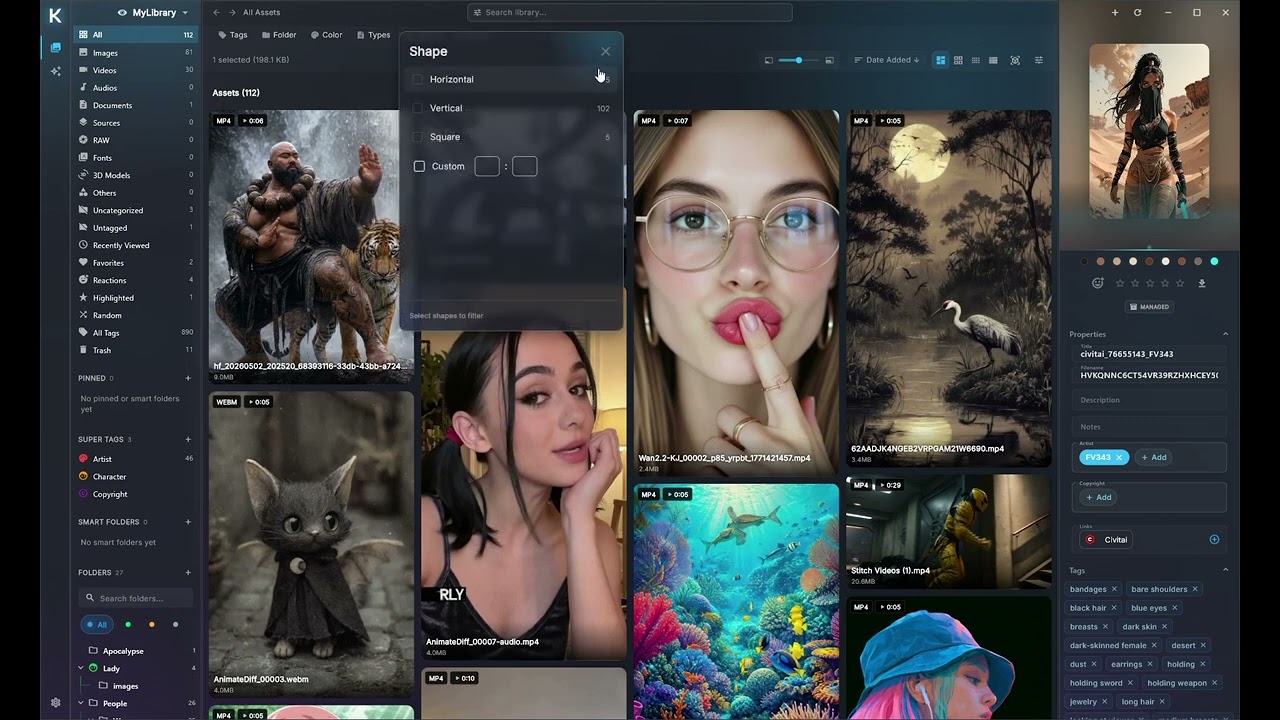
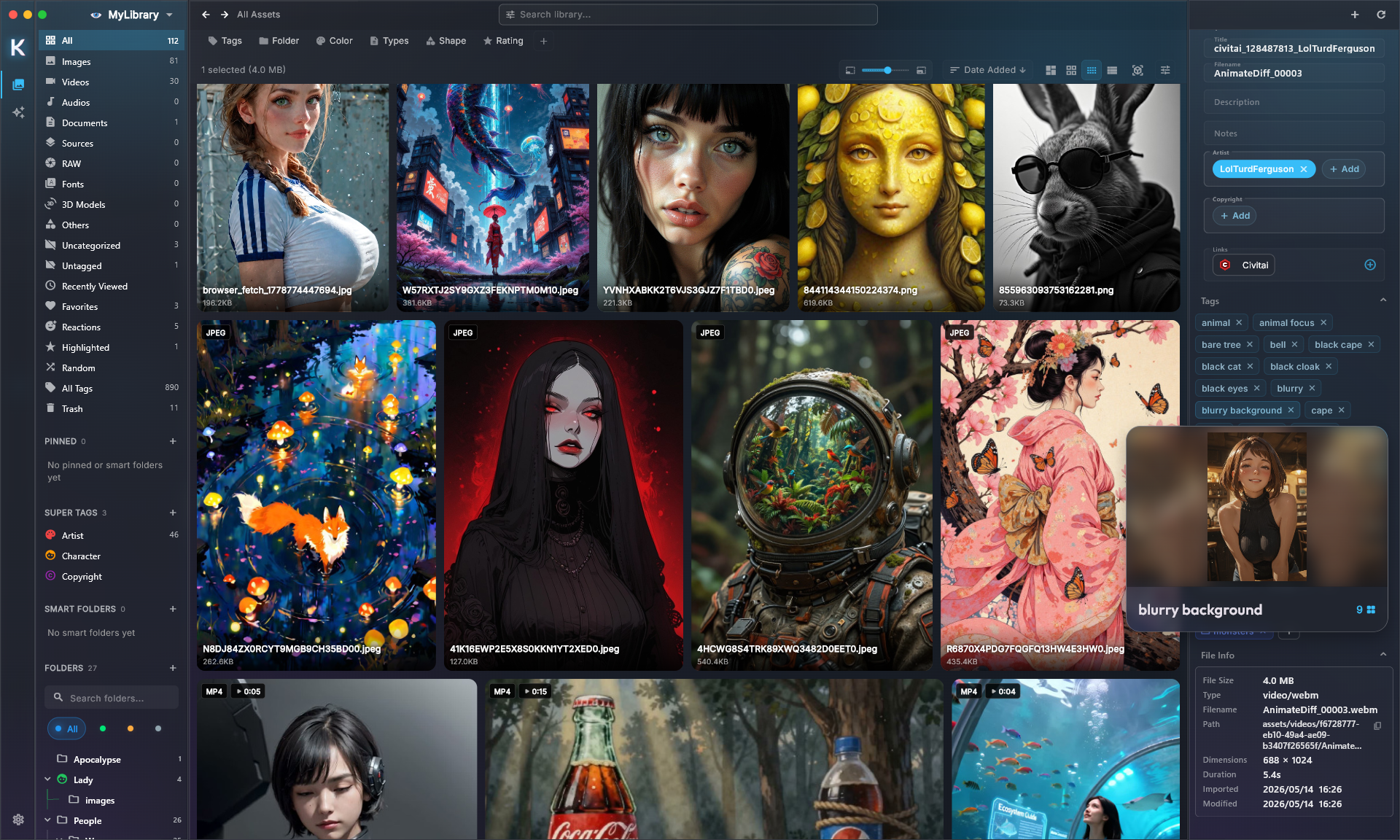
Search by name or tag, then narrow it down by color, rating, shape, size, length or date. Thousands of files shrink to the three you were thinking of.

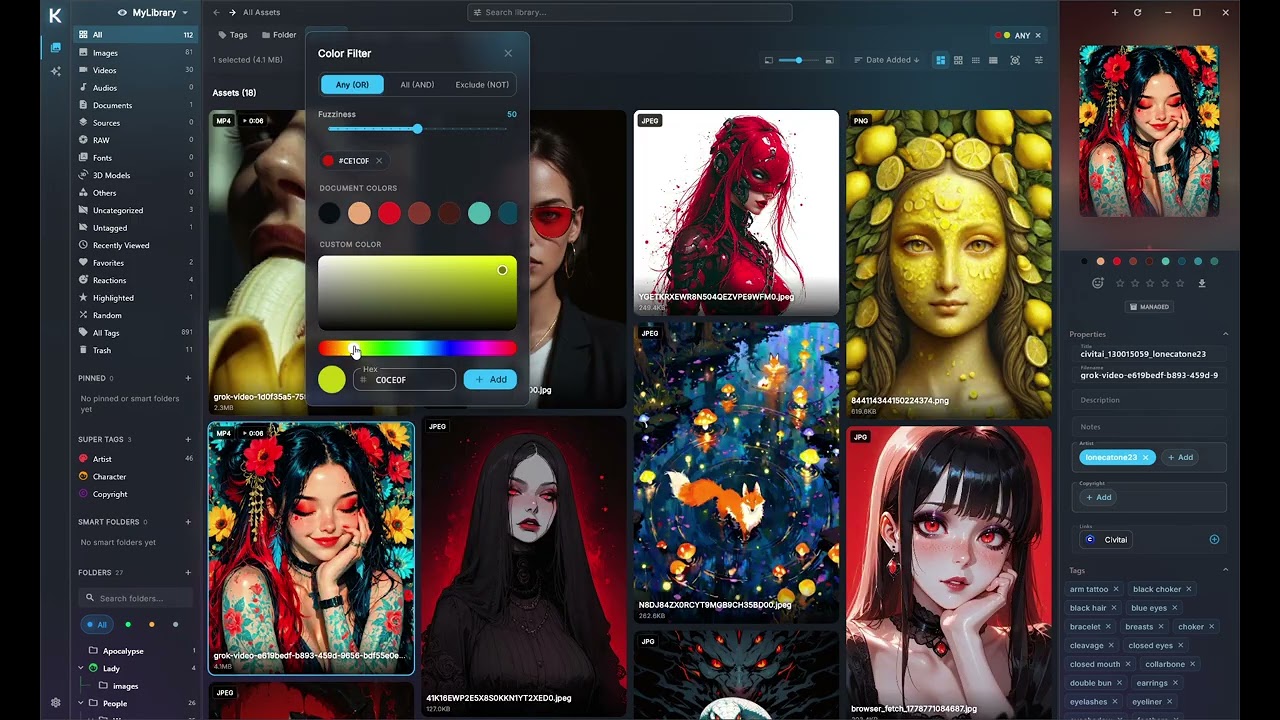
Search by color

Pick a color and see everything close to it, with a tolerance you control.

Filter by anything

Ratings, reactions, orientation, dimensions, duration, file type, notes.

Quick at any size

The grid only loads what you’re looking at, so big libraries stay smooth.

Open anything without opening anything else.

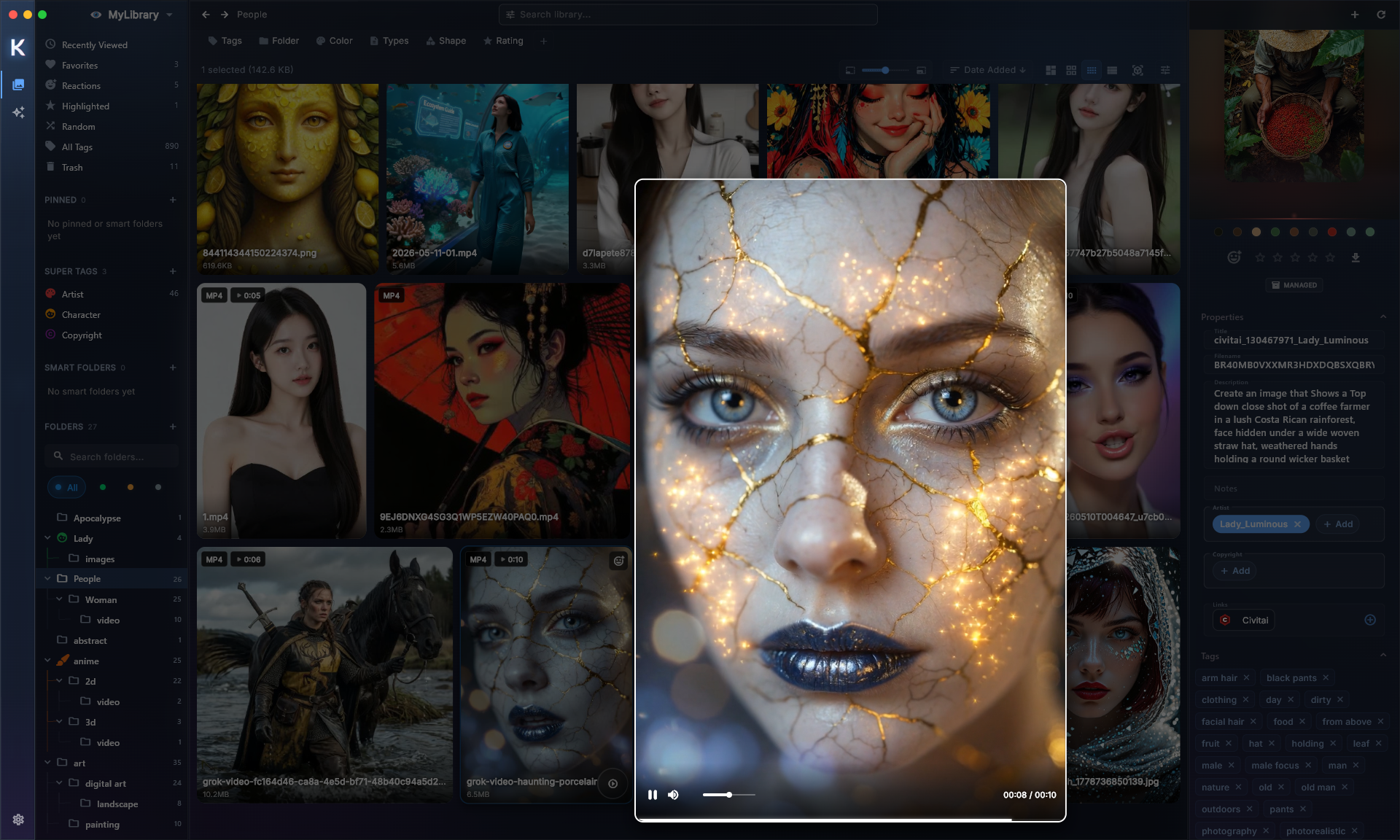
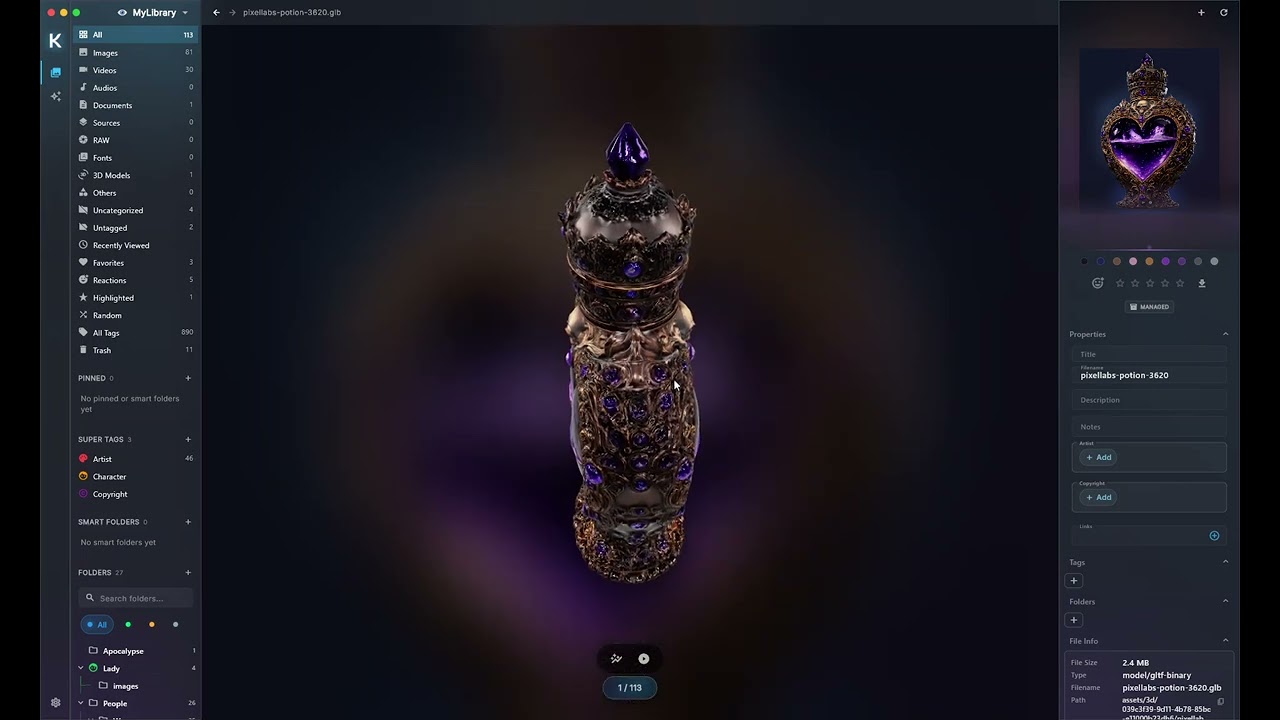
Images, video, documents and 3D models all preview inside Kariel.

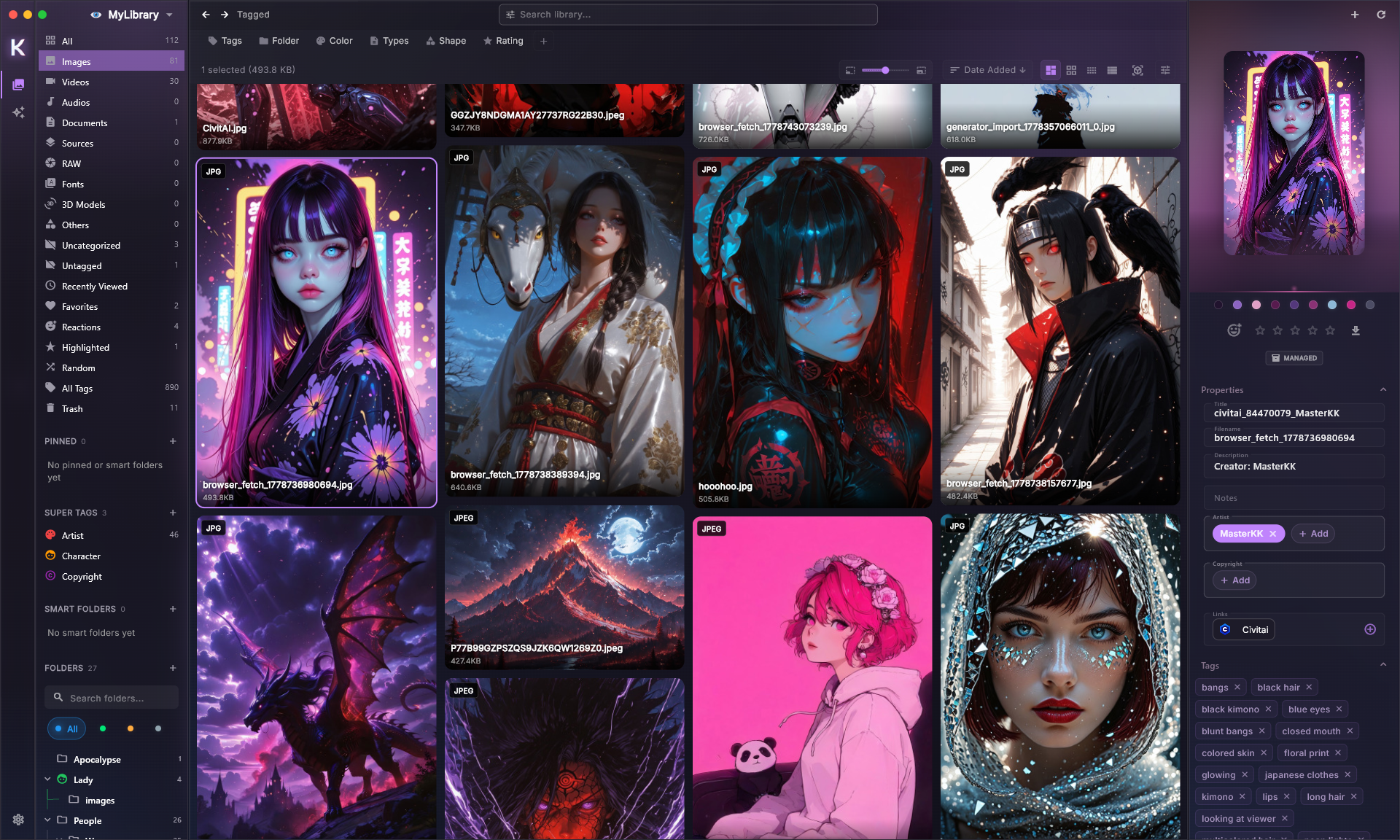
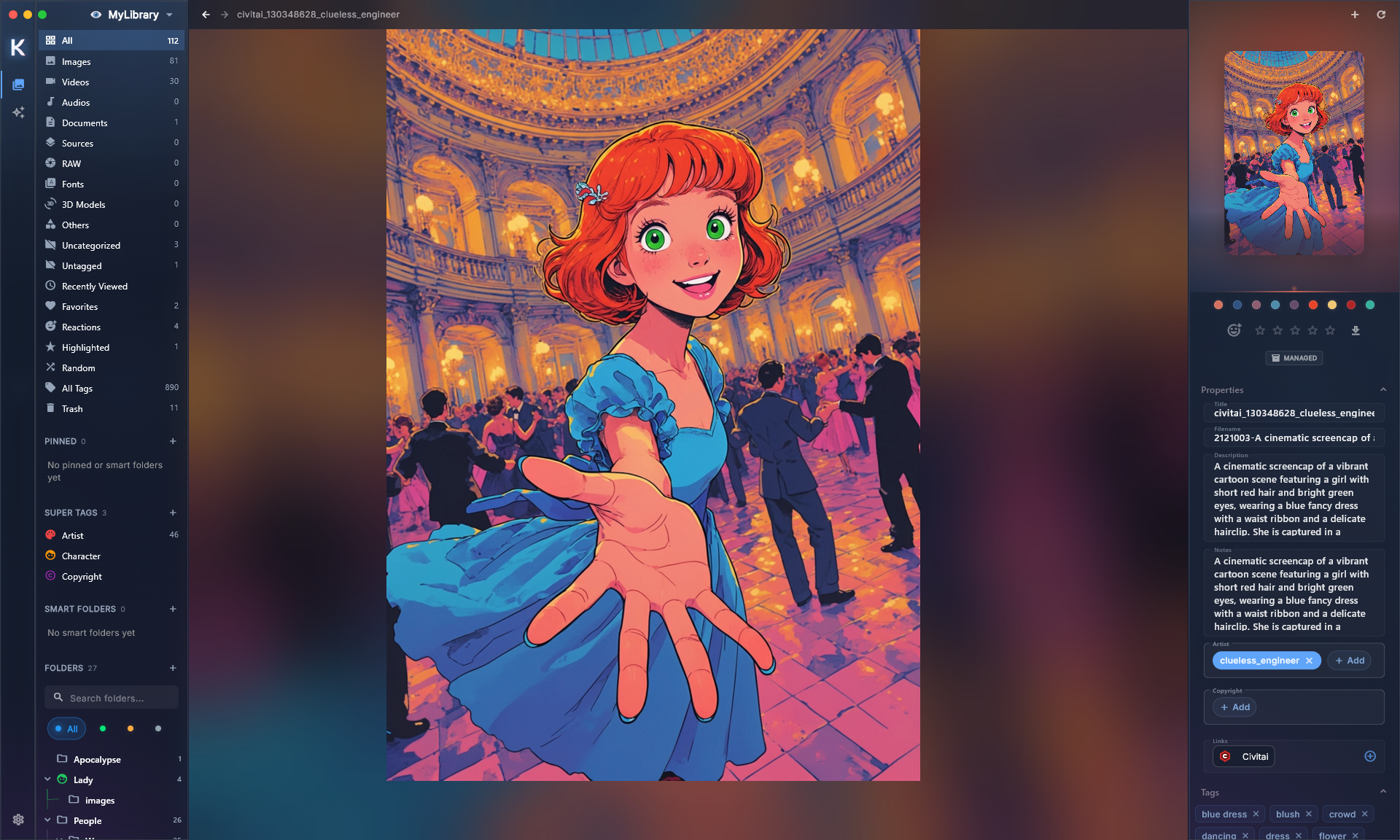
An image open in the Kariel media view

Full-size, with everything you know about it

Look closely, and keep tags, notes, colors and ratings one glance away.

Scrub video from the grid
Hover a clip and slide across it. No player to open.
A real PDF reader
Page through, zoom, rotate, select text and search, right in your library.
3D models
Spin an OBJ, FBX, glTF or STL before you drag it into your scene.
Files that belong together
Link a source to its edits, exports and screenshots, and see the whole family from any of them.

Saved the same image twice? Kariel notices.

Before a second copy goes in, Kariel shows you the one you already have. Keep it, keep both, or fold the new tags into the old one.

You find out in the moment, not three years and four thousand images later.

Keep files where they are, or bring them in.

When you import, you choose: copy files into Kariel, or leave them where they already live and let Kariel keep track of them.

No forced duplicates, and no filling your drive for the sake of a tidy folder. If you move something later, Kariel helps you relink it.

The import choice dialog

Some folders are nobody else’s business.

Lock a folder behind your library password, and choose how far Kariel goes to protect it.

Protected files still open inside Kariel once you unlock them, without leaving an unprotected copy lying around.

App lock

Hides and locks the folder in Kariel. The files on disk stay as they are.

Fast encryption

Encrypts the part of each file that makes it readable. Locks and unlocks quickly, even for big video.

Full encryption

Encrypts every byte. Slower on large files, and as private as it gets.

Coming from Eagle? Bring all of it.

Point Kariel at your Eagle library and it comes across as it is. Using something else? A .kimport file brings in libraries from other tools.

  • Every file
  • The folder tree
  • Tags and their hierarchy
  • Notes and descriptions
  • Colors and icons
  • Thumbnails

Make Kariel fit the sites you actually use.

Some sites deserve more than a generic save button. Kariel can add its own controls inside a website, like a quick-save on every image in a gallery.

The site’s own tags and details come along, mapped to the fields you chose. For the odd one out, a few lines of JavaScript do the rest.

Choosing a folder to save to

Your library stays on your computer.

Kariel isn’t a cloud service. Your files never have to leave your machine.

Stored on your drive
Your files and the library database live on your computer. We don’t host them.
A clipper that only talks to your app
The Web Clipper hands what you save to Kariel on your own machine, over a local connection.
Backups of your library
Kariel keeps recovery points of your library’s data, so a bad day doesn’t cost you years of tagging.
Easy to take with you
Export a selection, a folder or a whole library as a Kariel Pack, with every tag and note inside.

What we’re building next.

Kariel gets bigger every release. These are plans, not promises, but they’re the ones we’re working on now.

Next releases

Clips without copies
Mark a section of a video or audio file as its own clip, and only export it when you need the file.
File conversion
Turn images, video and audio into the format you need, linked back to the original.
Wallpapers
Set any image or video as your wallpaper, or rotate through a Smart Folder.
Reverse image search
Find where an image came from, and higher-resolution versions of it.
Phone and desktop in sync
Tags, folders and reactions you change on one device show up on the other.

Further out

Kariel Overlay
A small floating panel for capturing, color-picking and dragging assets into any app.
Search by meaning
Describe what you’re looking for in plain words, and find it even if it was never tagged.
Shared libraries
Review rooms and shared collections for clients and collaborators, without a central cloud.
Extensions
Install workflows and integrations that others have built, or publish your own.

Whatever you collect, it fits.

Images
JPG, PNG, GIF, WebP, AVIF, HEIC, SVG, PSD, RAW
Video
MP4, MOV, WebM, MKV, AVI, WMV
Audio
MP3, WAV, FLAC, M4A, OGG, Opus
Documents
PDF, DOCX, XLSX, PPTX, Markdown, CSV
3D models
OBJ, FBX, glTF, GLB, STL, USDZ

Give your next great find somewhere to live.

Start with the desktop app, then add the clipper and your phone.